Short answer
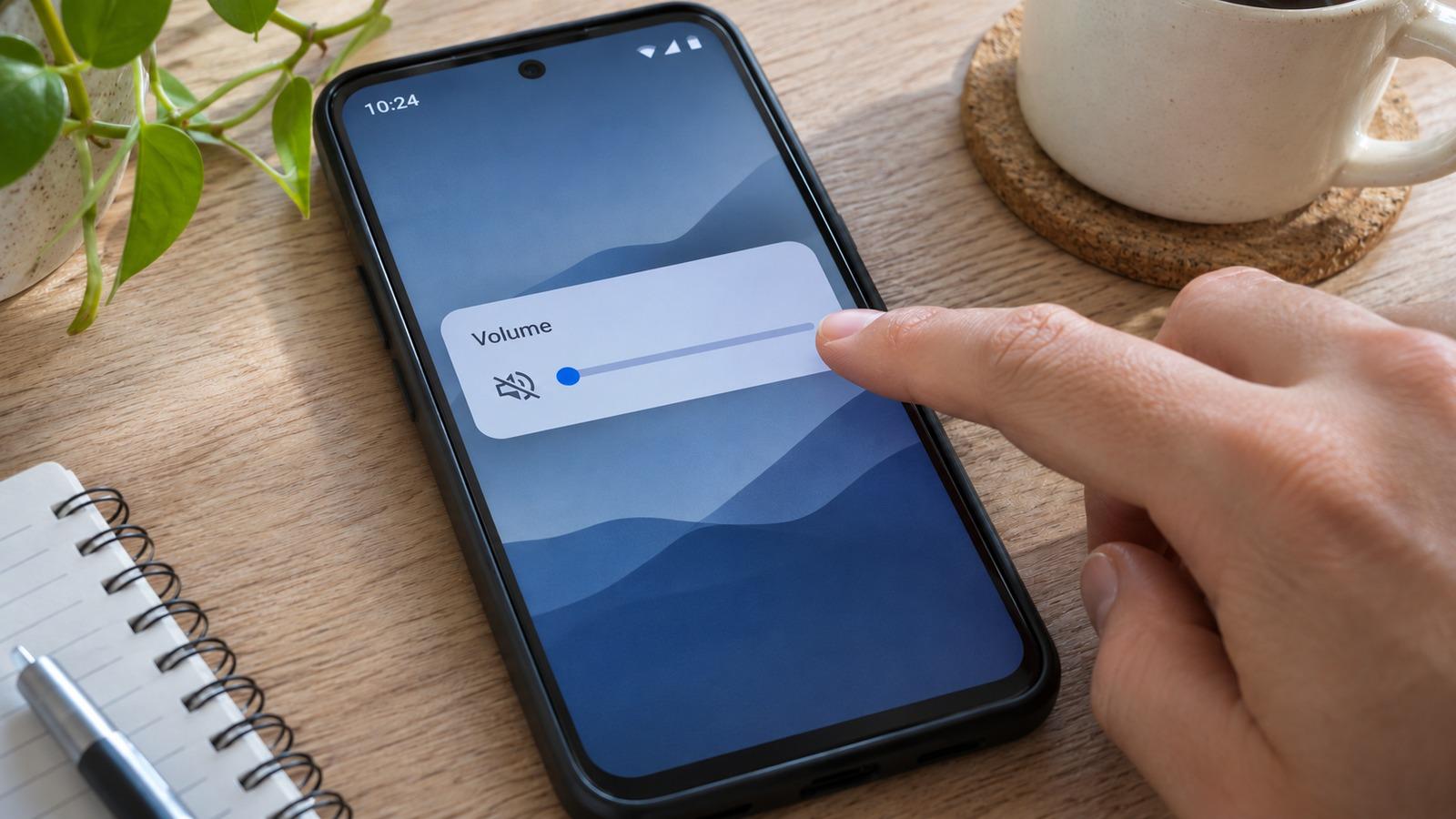
4 steps- Turn off Bluetooth and raise media volume while something is playing.
- Check Do Not Disturb and the sound output in the media panel.
- Remove the case and brush lint out of the bottom grille.
- Restart in Safe Mode. If sound works there, an app is the cause.
1. Check volume, Bluetooth and Do Not Disturb
Android has separate volumes for media, calls, ringtone and notifications. Press a volume button while music is playing, then tap the three dots or the settings icon on the slider to see them all. Media volume is the one that matters for videos and music.
Turn Bluetooth off. Earbuds in a pocket or a car in the driveway can stay connected and take the audio. Then swipe down from the top of the screen and check that Do Not Disturb is off, since some phones mute media in certain modes.
2. Check the output device
Pull down the notification shade while something is playing. The media player shows where audio is routed; tap it and choose This phone (or the phone’s name). On Samsung Galaxy phones, also check Settings > Sounds and vibration > Separate app sound, which can send one app’s audio to another device.
3. Look at the accessibility audio settings
Most Android phones have Mono audio and a left/right balance slider under Settings > Accessibility, sometimes under a submenu called Audio, Hearing enhancements or Audio adjustment. Make sure balance is centered. The exact path varies by manufacturer, so search Settings for “balance” if you can’t find it.
4. Clear the speaker grille
Take the phone out of its case. On most Android phones the main speaker is the slot on the bottom edge, and the earpiece at the top doubles as the second stereo speaker. Lint packs into the bottom slot from pockets and dulls the sound gradually, so you may not notice until it’s bad.
Brush across the grille with a dry, soft toothbrush, or press a small piece of painter’s tape on it and peel it off. Don’t push pins or needles through the mesh. The cleaning guide has more detail.
5. Push out trapped water
If the phone has been wet recently and the sound is muffled or crackly, water is still sitting behind the mesh. Play a low tone to move it out:
Run it two or three times with the speaker pointed down. The Android water eject page covers the earpiece, and the vibration tool can shake loose water from the charging port.
6. Test in Safe Mode
Safe Mode starts the phone with only its built-in apps. On most phones you press and hold the power button, then touch and hold Power off or Restart until the Safe Mode prompt appears. On Samsung, you can also hold Volume Down while the phone boots.
If the speaker works in Safe Mode, a downloaded app is the culprit. Equalizers, volume boosters, call recorders and other audio apps are the usual suspects. Restart normally and uninstall recent ones until the sound comes back.
7. Update, then reset as a last resort
Install any system update under Settings > System or Software update. If the speaker still doesn’t work after everything above and Safe Mode didn’t help either, back up the phone before trying a factory reset. Only do this if you’re confident it isn’t a hardware fault, because a reset won’t fix a broken speaker.
Is the speaker broken?
Run the speaker test and the left/right test. Signs of a hardware fault:
- Silence from the bottom speaker in every app and in Safe Mode, while headphones work fine.
- A buzz or rattle at the same pitch every time, which means the cone is torn or something is touching it.
- Sound that cuts in and out when you press near the speaker, which points to a loose connector.
Speaker modules are inexpensive parts on most Android phones. The manufacturer’s service center or a local repair shop can usually replace one the same day.