Short answer
4 steps- Check the mute key and the volume level, then unplug headphones and turn off Bluetooth.
- Select the built-in speakers as the output device.
- Restart the computer, not just sleep and wake.
- On Windows, reinstall the audio driver. On Mac, restart Core Audio.
Test the speakers first
Play this tone to check whether any sound comes out at all. It’s a pure signal straight from the browser, so it rules out a problem with a particular video or app.
If you hear it, your speakers work and the problem is in a specific app. If you hear nothing, keep going. Once sound is back, the left/right test confirms both speakers are working.
1. Mute, volume and the obvious culprits
- Press the mute key, usually on F1 or a key with a speaker icon, sometimes with the Fn key.
- Unplug headphones and USB audio devices. A stuck headphone jack can make the laptop think headphones are still connected; plug a pair in and out a few times.
- Turn off Bluetooth, and unplug any HDMI or USB-C monitor. Monitors and TVs often take over the audio output.
2. Windows: pick the right output
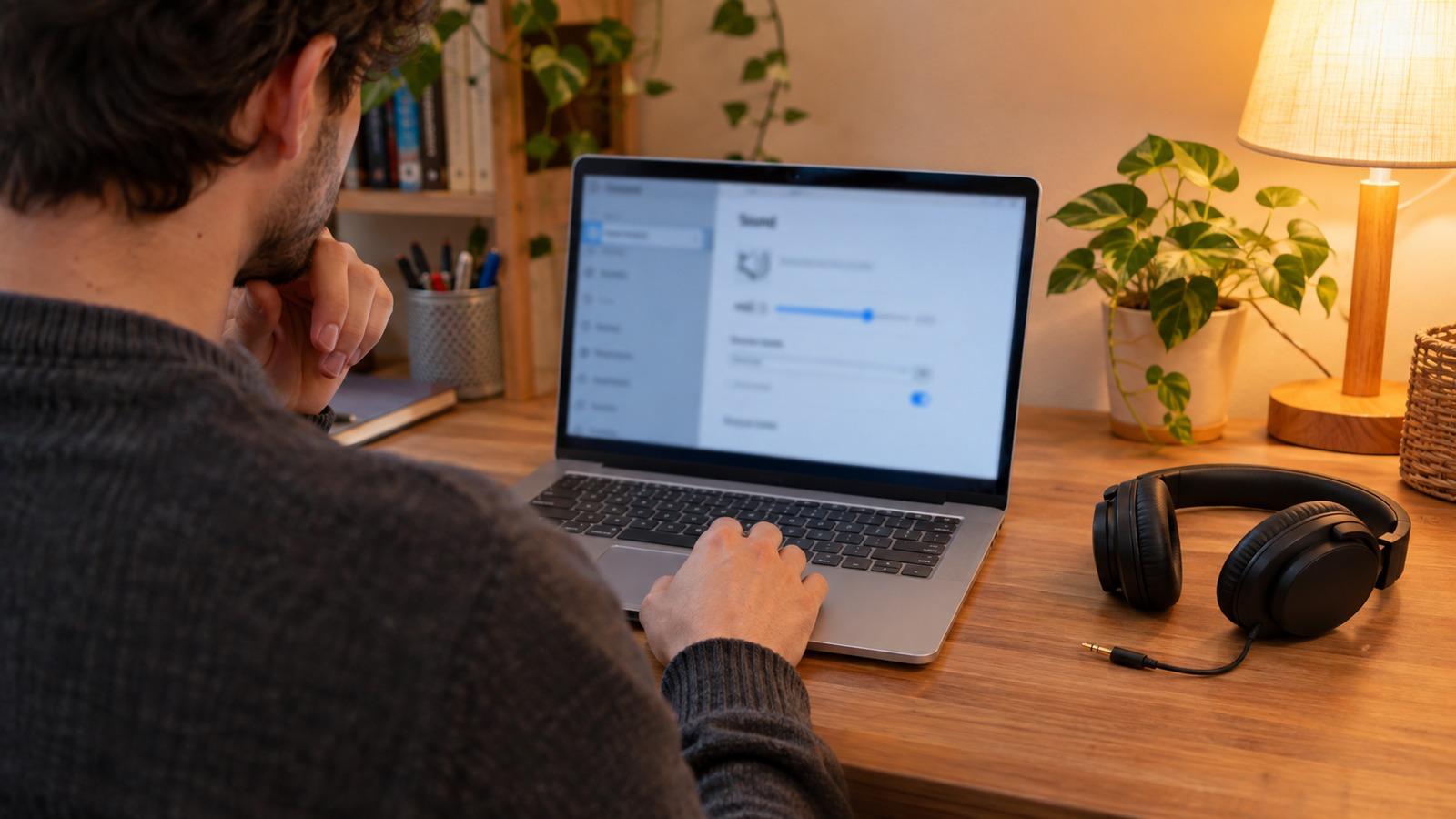
- Open Settings > System > Sound.
- Under Output, choose Speakers (often listed with the name Realtek, Intel or your laptop brand).
- Open the Volume mixer from the same page and check that the app you’re using isn’t muted.
- Select the speakers and turn off Audio enhancements. They cause silence or crackle on some drivers.
Windows also has an audio troubleshooter under Settings > System > Troubleshoot, or in the Get Help app. It resets the most common settings automatically.
3. Windows: restart the audio service
Press Windows + R, type services.msc and press Enter. Find Windows Audio, right-click it and choose Restart. This often brings back sound that vanished after waking from sleep.
4. Windows: reinstall the driver
- Right-click the Start button and open Device Manager.
- Expand Sound, video and game controllers.
- Right-click your audio device and choose Update driver. If that doesn’t help, choose Uninstall device and restart; Windows reinstalls it on boot.
- If sound stopped right after a Windows update, open the device’s Properties > Driver and use Roll Back Driver.
Your laptop maker’s support site usually has the best audio driver for your exact model. Dell, HP and Lenovo all have driver lookup tools that use the serial number.
5. Mac: output and Core Audio
- Open System Settings > Sound and, under Output, select your Mac’s built-in speakers.
- Check that the output volume isn’t muted and the balance slider is centered.
- Restart Core Audio: open Terminal, type
sudo killall coreaudiod, press Enter and enter your password. Sound restarts in a few seconds. - If you use audio apps like virtual audio devices or volume boosters, quit or uninstall them and test again.
6. Is it the hardware?
Signs that a laptop speaker has actually failed:
- Headphones work perfectly, but the built-in speakers are silent after a driver reinstall.
- One speaker is silent or distorted in the left/right test while the other is fine.
- Buzzing or rattling on the sweep test at moderate volume. See speaker crackling for what that means.
- The laptop recently had liquid spilled on it. Turn it off and get it serviced; don’t keep testing.
Most laptops have built-in hardware diagnostics, such as Apple Diagnostics on Mac or the maker’s own tool on Dell, HP and Lenovo, which can confirm a speaker fault before you book a repair.
Desktop computer speakers
For external speakers, check the power light and the speaker’s own volume knob, then make sure the plug is in the green line-out jack, not the pink microphone jack. Try another cable or USB port. On Windows, the speakers must be chosen as the output device just like laptop speakers.