Short answer
4 steps- Turn off Bluetooth and check the audio output in Control Center.
- Take off the case and check the speaker and earpiece for lint or a screen protector edge.
- If it got wet, play the water eject tone two or three times.
- Run a speaker test to see whether one speaker or both are affected.
Know your two speakers
Every iPhone since the iPhone 7 has stereo speakers: one at the bottom edge next to the port, and the earpiece at the top that you hold to your ear on calls. In landscape both play music and video. If only one sounds muffled, the problem is almost always physical: a blockage, water or a failing part on that side.
1. Make sure audio is actually playing from the speaker
- Turn off Bluetooth for a moment. A paired car, speaker or AirPods case nearby can grab the audio.
- Open Control Center, press and hold the music card, then tap the AirPlay icon. iPhone should be selected.
- Drag the volume up with the buttons while something is playing. Ringer and media volume can differ.
2. Check the accessibility audio settings
Go to Settings > Accessibility > Audio & Visual. Make sure the balance slider sits in the middle, and try switching Mono Audio on and off. If Headphone Accommodations is on, turn it off while you test. These settings are easy to change by accident and can make one side sound thin.
3. Look for a physical blockage
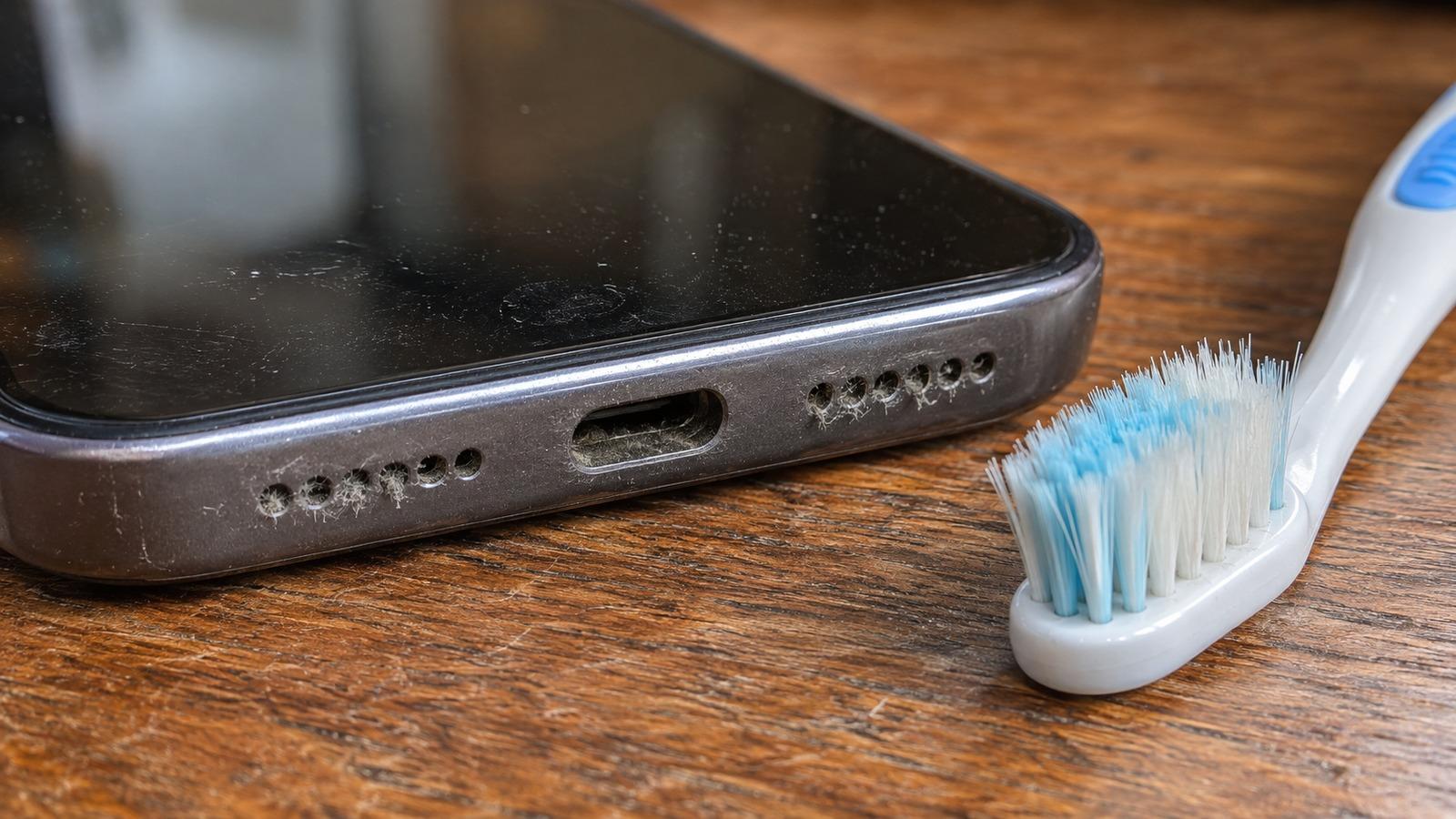
Take the phone out of its case. Some cases sit right over the bottom grille, and a screen protector that’s slightly misaligned can cover the earpiece slot. Shine a flashlight on both openings. Pocket lint and dust settle into the mesh over time and dull the high frequencies first, so voices sound far away.
To clean it, use a dry, soft-bristled toothbrush and brush across the grille, not into it. For packed lint, press a small piece of painter’s tape or Blu Tack on the mesh and lift it away. The speaker cleaning guide walks through it step by step.
4. Clear any water from the grille
If the phone was in the rain, the shower or the pool, water trapped behind the mesh is the most likely cause, especially if the sound crackles as well. iPhone has no built-in water eject like Apple Watch, but a low tone does the same job.
Run it at high volume with the bottom of the phone tilted down, two or three rounds. Our iPhone water eject page shows how to clear the earpiece too. If the iPhone took a proper dunk, follow the full wet phone guide.
5. Restart and update
Restart the phone, then check Settings > General > Software Update. If the problem happens in only one app, the app is at fault, not the speaker.
6. Test each speaker
Play the left/right sound test with the phone in landscape. You should hear the left channel from one end and the right from the other. Then run the rising sweep. A rattle or buzz at certain pitches points to a damaged cone or debris touching it. Total silence on one side points to a failed speaker or connector.
Muffled only on calls?
Calls use the top earpiece. Clean that slot carefully, check a screen protector isn’t covering it, and try a call on speakerphone. If speakerphone is clear but the earpiece is muffled, the earpiece mesh is blocked or the part has failed. A poor connection can also sound muffled, so test with a second caller.
When it’s a hardware problem
If nothing changes after a clean, a dry-out and a restart, the speaker itself is likely damaged. Book a repair with Apple or an authorized service provider. Speaker replacement is a routine repair on every recent iPhone. Apple’s speaker troubleshooting page also lists model-specific checks.